
The Content tab is the central location for managing the information CORE holds about your repository. It provides repository managers with a complete view of the outputs indexed by CORE and offers tools for reviewing content, checking availability, managing visibility, and responding to content removal requests.
In this installment of the CORE Dashboard Educational Series, we explore the key features of the Content tab and how they can support day-to-day repository management.
The Content tab is for the general management of all the information that CORE holds about your repository. It lists all the papers that CORE was able to index from your repository. If the number of outputs visible in CORE doesn’t match the number of outputs in your repository, you can investigate the reason by making sure that your repository is compliant with the CORE Data Provider’s Guide. Any issues we may have detected with your repository shown in the Indexing status tab are also a good indicator for understanding the difference.
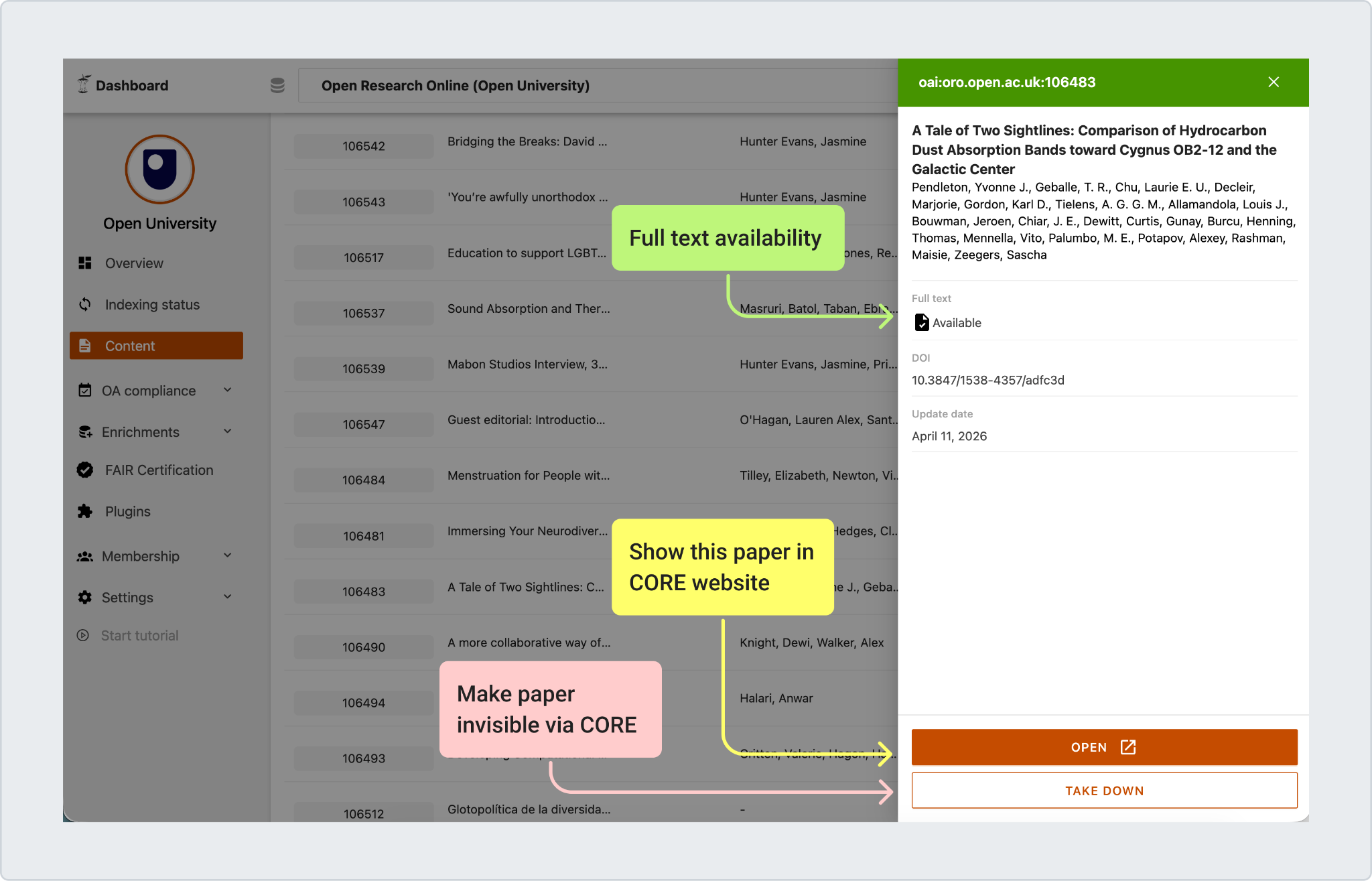
The Content tab was created for the repository manager to easily manage content. From here, you can:
- Search for a specific paper.
- Manage the paper’s visibility via CORE:
- You can take down papers.
- Or make them visible.
- Download all papers in a CSV file.
- Check if the full text is available in CORE.
Managing paper’s visibility
Content tab can be particularly useful if somebody contacts your repository and says that there is paper that needs to be taken down. You can just pick the article, click the button, and it will be taken down from CORE.
. Alternatively, you can use the update or remove article form, which can be useful if someone without dashboard access (e.g., authors) needs to remove full text from the website.
CORE Dashboard Education Series: Content tab Q&A Session
Join our online Q&A session on 18 June at 11:00 am BST to get your questions answered and share feedback about your repository’s indexing status.
Use this link to join: CORE Dashboard Education Series: Content tab Q&A Session | Meeting-Join | Microsoft Teams
If you cannot attend, we still welcome your feedback via the “Feedback” button in the dashboard: “Feedback”.
Previous educational series material:
Understanding your repository’s indexing status in CORE
Understanding the CORE Dashboard: A Closer Look at the Overview Tab